Help › Greeting
Greeting
Use this page to choose what callers hear when they reach your office.
A greeting is the message a caller hears first. On this page you make a greeting by typing the words. The computer speaks them for you.
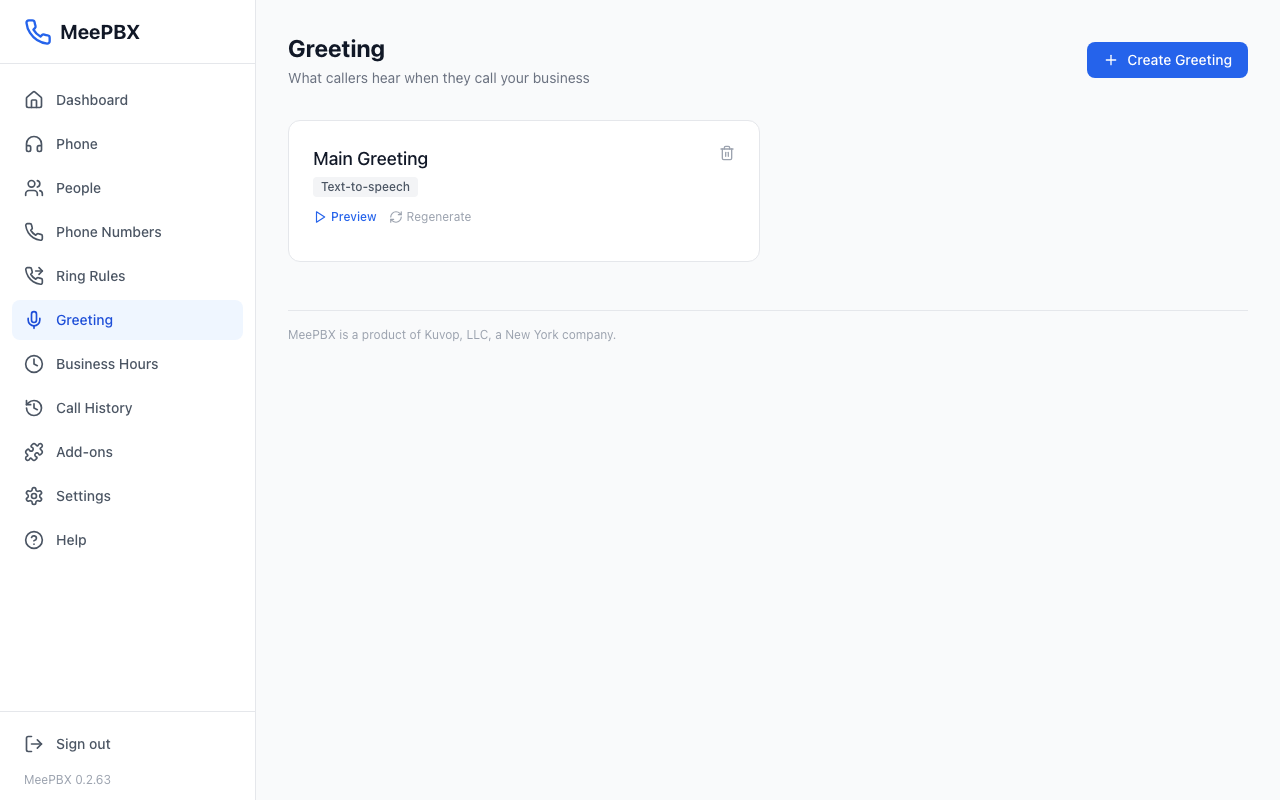
Make a new greeting
- Click "Create Greeting" at the top right. If the page is empty, click "Create Your First Greeting" instead.
- Type a name in "Greeting Name". The name is only for your list. Callers do not hear it.
- Leave "Audio Source" set to "Type it out (text-to-speech)".
- Type what callers should hear in "What should the greeting say?"
- Click "Create Greeting" at the bottom of the form.
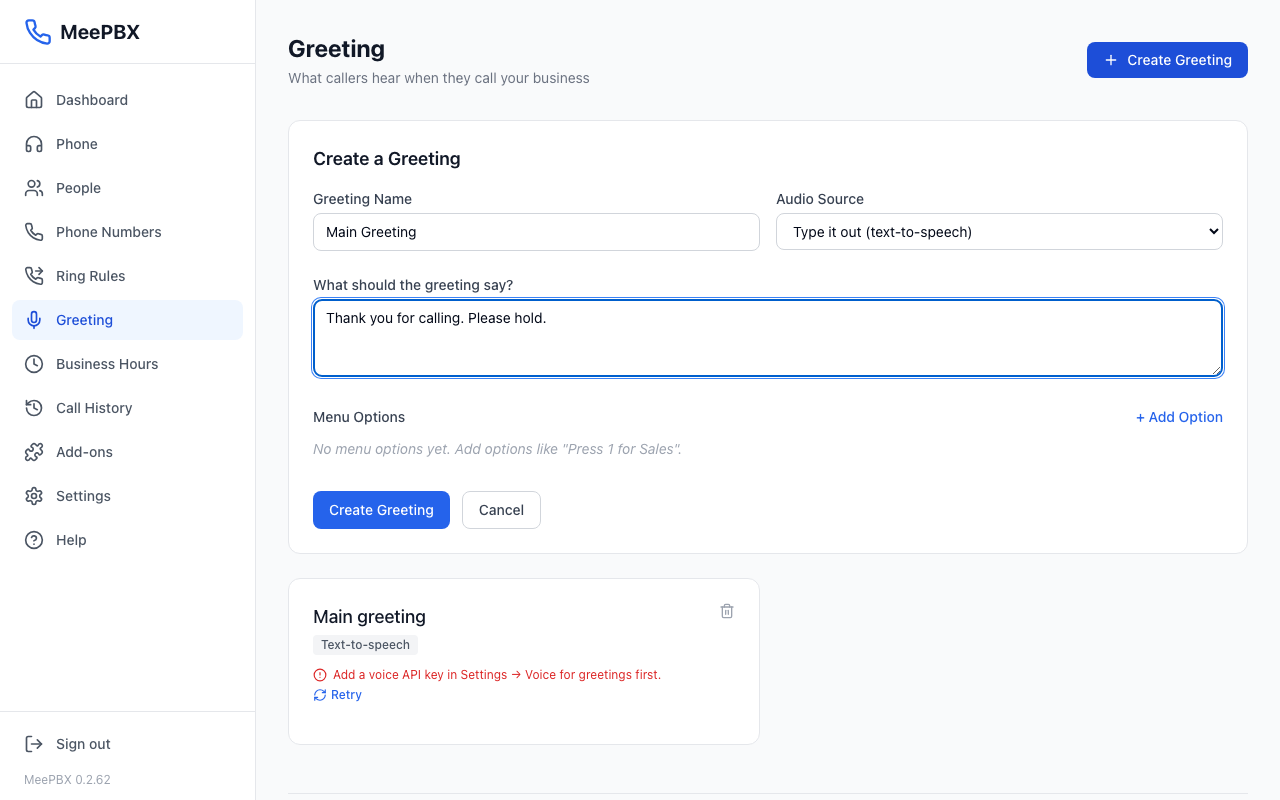
Add menu choices (optional)
A menu lets callers press a number. For example, "Press 1 for Sales." Menu choices are optional. You can skip this part.
- Click "+ Add Option". The numbers go in order, 1 first. You can add up to 9.
- Type a name for the choice in the first box. For example, Sales.
- In the first drop-down, pick "Person", "Ring rule" or "Another greeting".
- In the second drop-down, pick the name the call should go to. Then click "Create Greeting".
- To remove a choice, click the trash icon next to it.
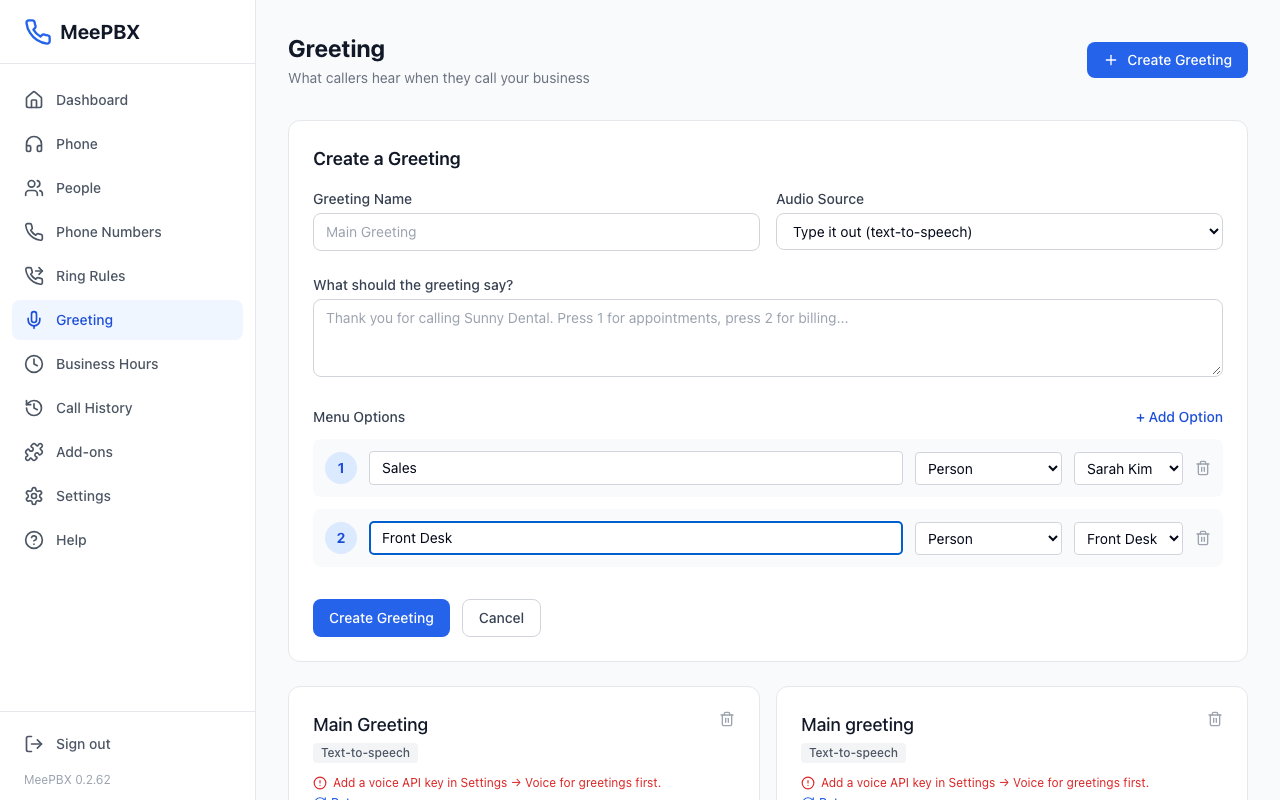
Warning: The second drop-down says "Select..." until you pick a name. Pick one for every choice before you click Create Greeting.
If you skip the menu choices, callers hear the greeting, then hear it once more. After that, the call rings everyone on your Default ring rule. To send callers to a greeting, open the Phone Numbers page, click Edit, and choose "A greeting menu" and your greeting.
Check how it sounds
Once the audio is ready, the greeting card shows a "Preview" button. Click it to hear the greeting. "Generating audio..." means it is still being made. Wait for it to finish.
If a red message appears under the greeting, read it. Click "Retry" to try again. The "Regenerate" button under a ready greeting makes the audio again from the saved words.
Change what callers hear
This page has no Edit button, so you cannot change the words of a greeting you already made. To change what callers hear:
- Click "Create Greeting" and make a new greeting with the new words.
- Open the Phone Numbers page and point the number at the new greeting. Choose "A greeting menu" and pick it.
- Call the number and listen to the new greeting.
- Click the trash icon on the old greeting. A box asks you to confirm before it is deleted.
Tip: For when no one answers, see Voicemail. For which phones ring, see Ringing.
Ready to try it? Your phone system is free for 7 days, no card needed.
Join the beta: 7 days free