Help › Who rings when a call comes in
Who rings when a call comes in
This page helps you pick which phones ring when someone calls your office, and where the call goes if nobody answers.
What the list shows
Each card is one ring rule. It shows the rule's name, whether people ring all at once or one at a time, and what happens if nobody answers.
One rule is marked "Default." The setup steps create it to ring everyone on the list at once. When you add a new person, that person is added to the Default rule too. If nobody answers, Default sends the caller to the main line voicemail. Removing a person from the People page takes them out of every rule.
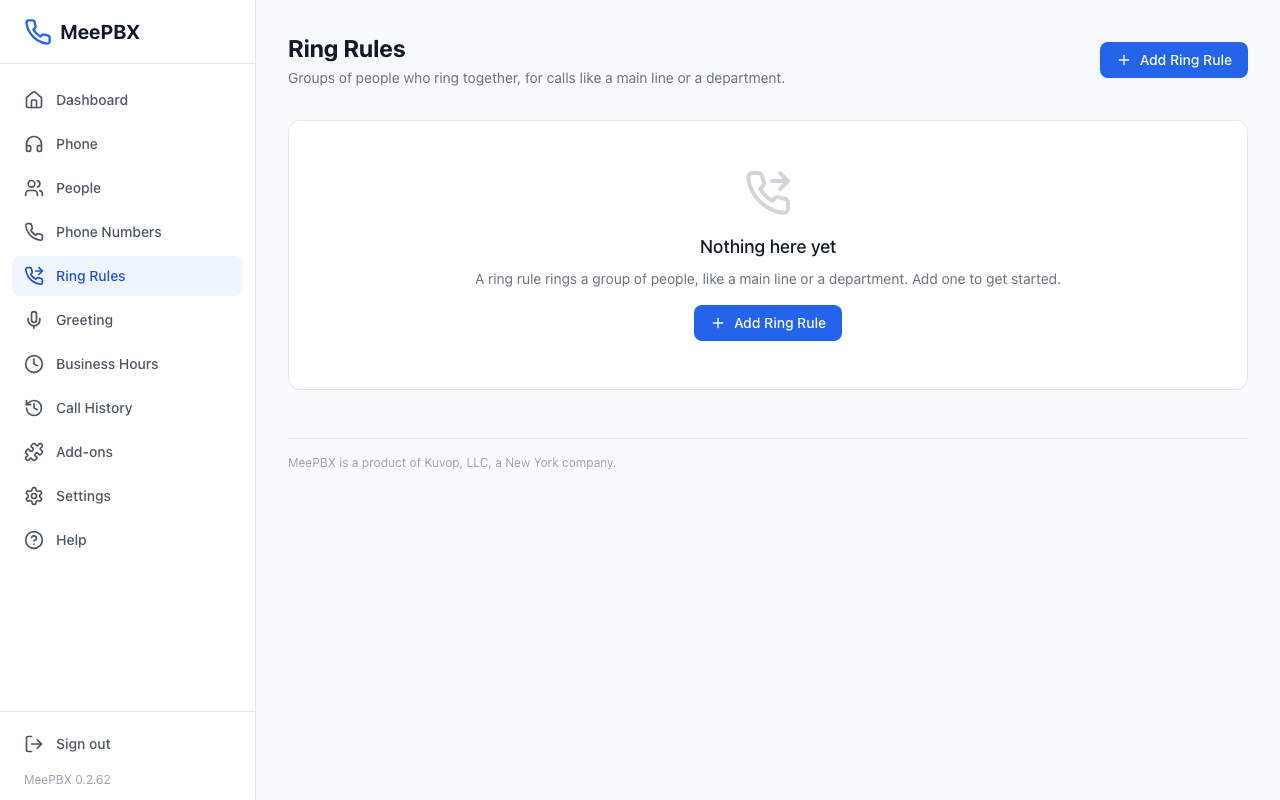
Make a new ring rule
- Click "Add Ring Rule."
- Type a name in "Name," for example "Front Desk."
- Under "How should people ring?" pick "Everyone at once" or "One at a time."
- Under "Ring time" pick 15, 20, 25 or 30 seconds. With "One at a time," each person rings for this long before the call moves to the next person.
- Under "Who rings?" open "Add a person...," pick a name and click "Add." Repeat for each person.
- Use the up and down arrows beside each name to change the order. If you picked "One at a time," the person at the top rings first.
- Click "Add Ring Rule" to save. When you are editing a rule, click "Save Changes."
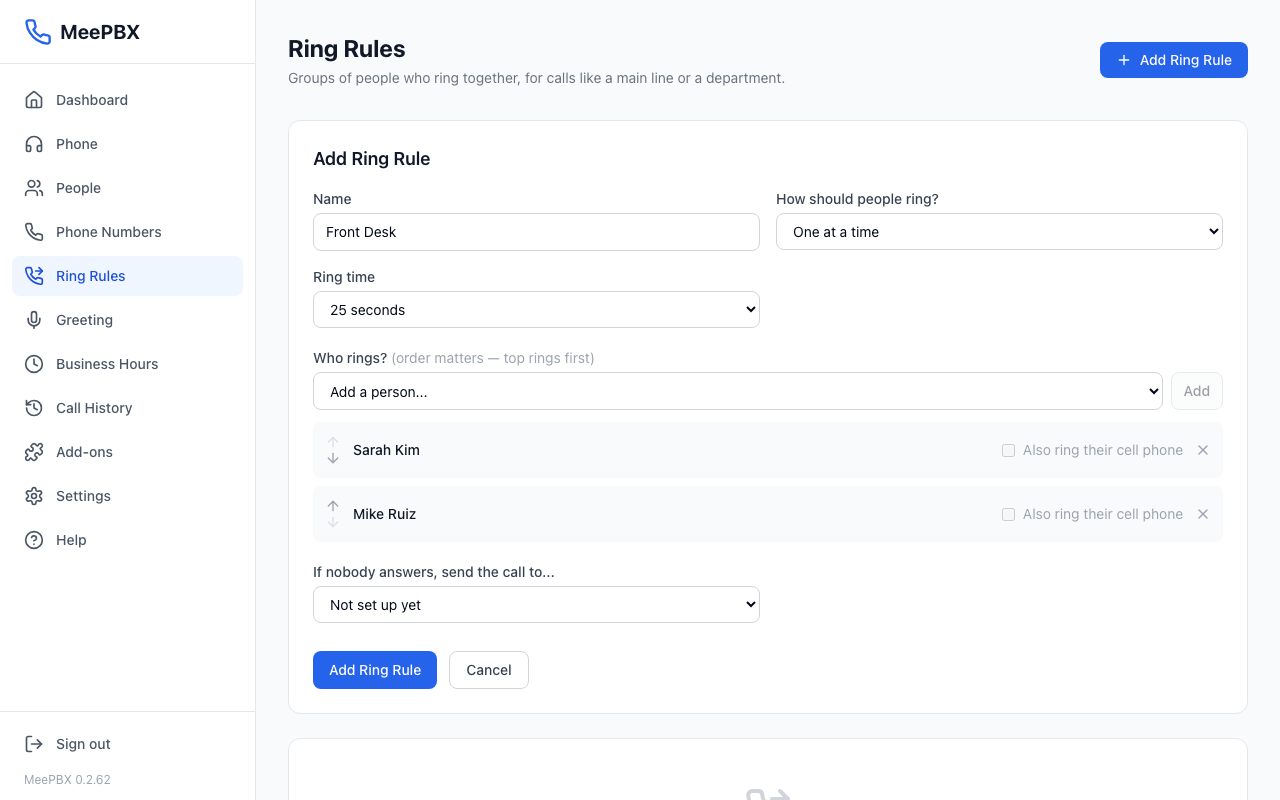
Ring a cell phone too
In the "Who rings?" list on the rule form, each person has a box that says "Also ring their cell phone." Tick it to ring that person's cell phone as well as their desk phone. The box is grey until that person has a cell phone number saved on the People page.
If nobody answers
Under "If nobody answers, send the call to..." pick one choice. A second box, "Which one?", appears for most choices. Fill it in.
Do not leave this on "Not set up yet". The phones ring, and then the call ends and the caller cannot leave a message.
- Main line voicemail (everyone can check it). Messages light up on every desk phone. Open them from the Phone page, or dial *99 from any desk phone.
- A person's voicemail. Pick the person under "Which one?"
- A greeting. Pick the greeting under "Which one?" See Greeting.
- Another ring rule. Pick the other rule under "Which one?"
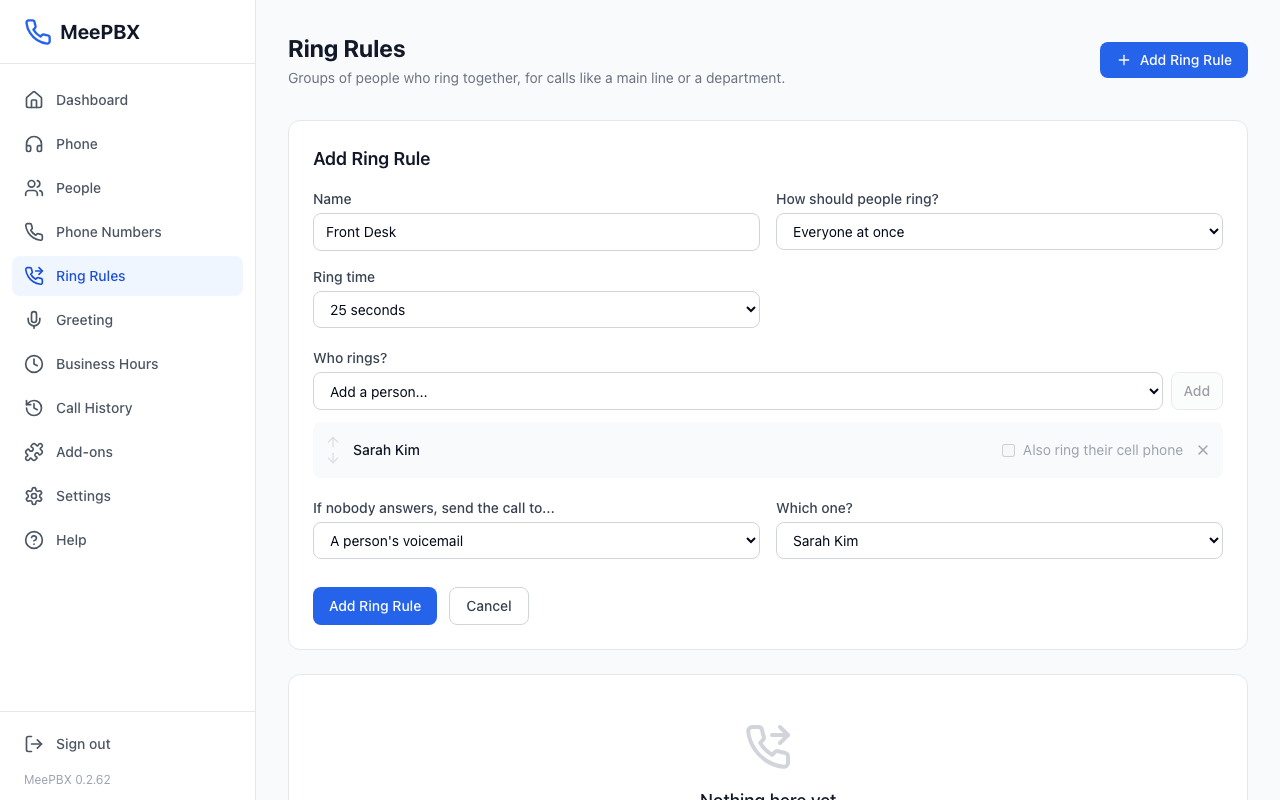
Tip: If you are not sure what to pick, use "Main line voicemail (everyone can check it)." Everyone on the list can check those messages.
Change or delete a rule
Click "Edit" on a card to change it. To delete a rule, click the trash icon on its card. The page asks you to confirm before it removes the rule.
Warning: Do not delete the Default rule while a phone number still uses it. Open the Phone Numbers page and check where each number rings first.
Related pages
People adds the people who can ring. Voicemail explains how messages work. Desk phones covers the phones that ring.
Ready to try it? Your phone system is free for 7 days, no card needed.
Join the beta: 7 days free