Help › Call history
Call history
Use Call history to see every call your office made, received, or missed, and to save the list as a file.
Read the call list
Each row is one call.
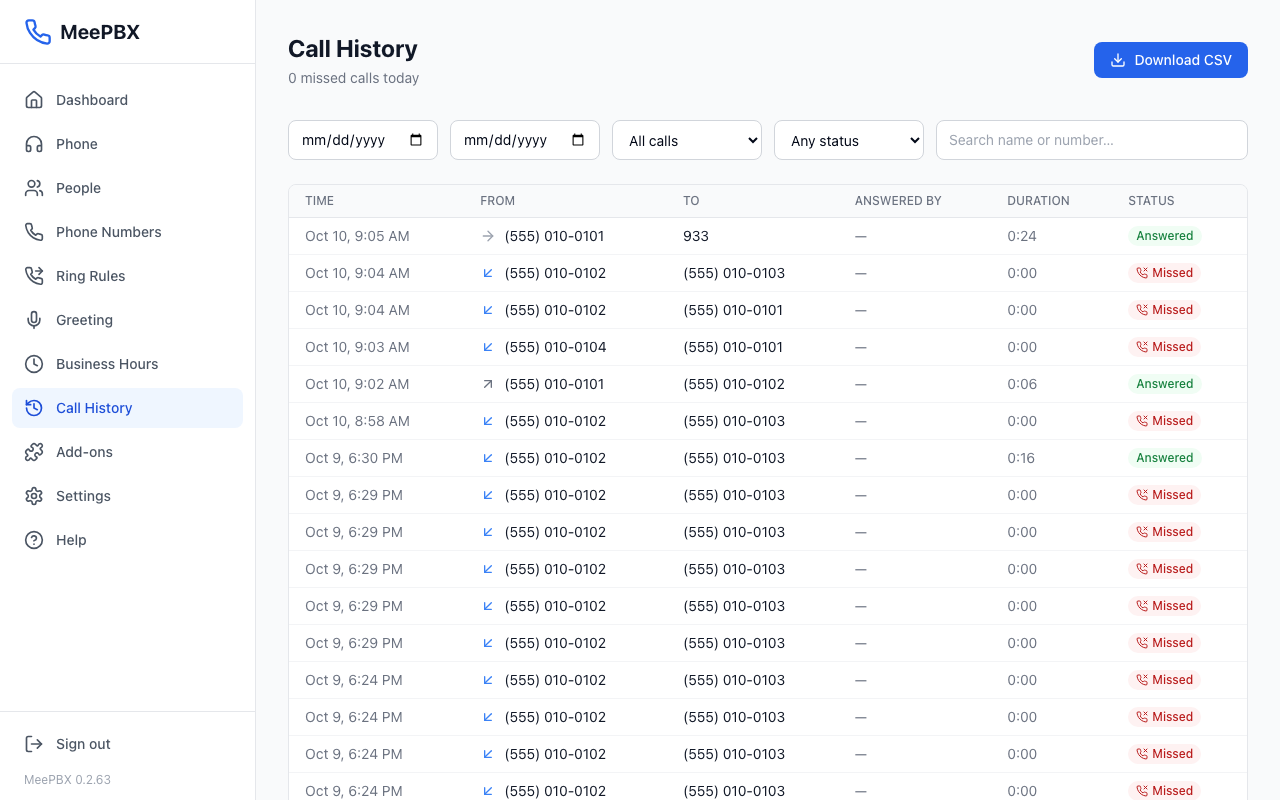
The columns are:
- Time: when the call started, in the time zone of your computer.
- From: who called. A small arrow shows whether the call came in, went out, or was between two people in your office.
- To: the number or person that was called.
- Answered by: who picked up. A dash means nobody did.
- Duration: how long the call lasted, such as 2:05.
- Status: Answered, Missed, Voicemail, or Busy.
On a phone, each call shows as a small card with the same details.
Find a call
Use the boxes above the list to narrow it down. The list updates as you change them.
- Click the first date box and pick the first day you want. Click the second date box and pick the last day.
- Open the All calls menu to show only Incoming, Outgoing, or Internal calls.
- Open the Any status menu to show only Missed, Voicemail, or Busy calls.
- Type a name or number in the Search name or number… box.
To go back to the full list, set the menus to All calls and Any status, and clear the search box. If no calls match, the list says "No calls match these filters."
Listen to a voicemail
Calls with the Voicemail status have a round play button in their row.
- Find the call. To see only voicemails, choose Voicemail in the Any status menu.
- Click the round play button. The message starts playing. Click the button again to pause it.
- If the row says "No recording," there is no message to play for that call.
To set up voicemail, read the Voicemail article.
Save the list as a file
- Choose any filters you want first. The file only includes calls that match them.
- Click Download CSV at the top right of the page.
- Wait while the button says Downloading…. The file is saved to your computer.
A CSV file opens in spreadsheet programs such as Excel.
Move between pages
The list shows 25 calls at a time. At the bottom, the count shows how many calls match. Click Next or Previous to see more. The line between them says which page you are on, such as "Page 2 of 4."
Tip: Related articles: Your dashboard, Getting help.
Ready to try it? Your phone system is free for 7 days, no card needed.
Join the beta: 7 days free