Help › Desk phones and adapters
Desk phones and adapters
Connect a Grandstream desk phone, or a regular phone through an HT801 adapter, so calls for a person ring it.
Before you start
The person must already be on the People page. You need the HT801 adapter, a regular desk phone, and your internet router. The adapter plugs into the router.
What to buy
- Grandstream HT801 (Amazon, about $35 to $46). Connects one regular phone. This is the adapter we test with.
- Grandstream HT802 (Amazon, about $45 to $59). Has two phone ports, but MeePBX uses only the first one for now, so it rings for one person like the HT801.
- Grandstream GRP2612W desk phone. A desk phone with a screen, two line buttons and Wi-Fi. This is the desk phone we test with. The GRP2612, GRP2614 and GRP2616 are set up the same way, but we have not tested them.
For now, MeePBX works only with these Grandstream devices.
Any regular corded or cordless phone works with either adapter. You also need an internet cable from the adapter to your router.
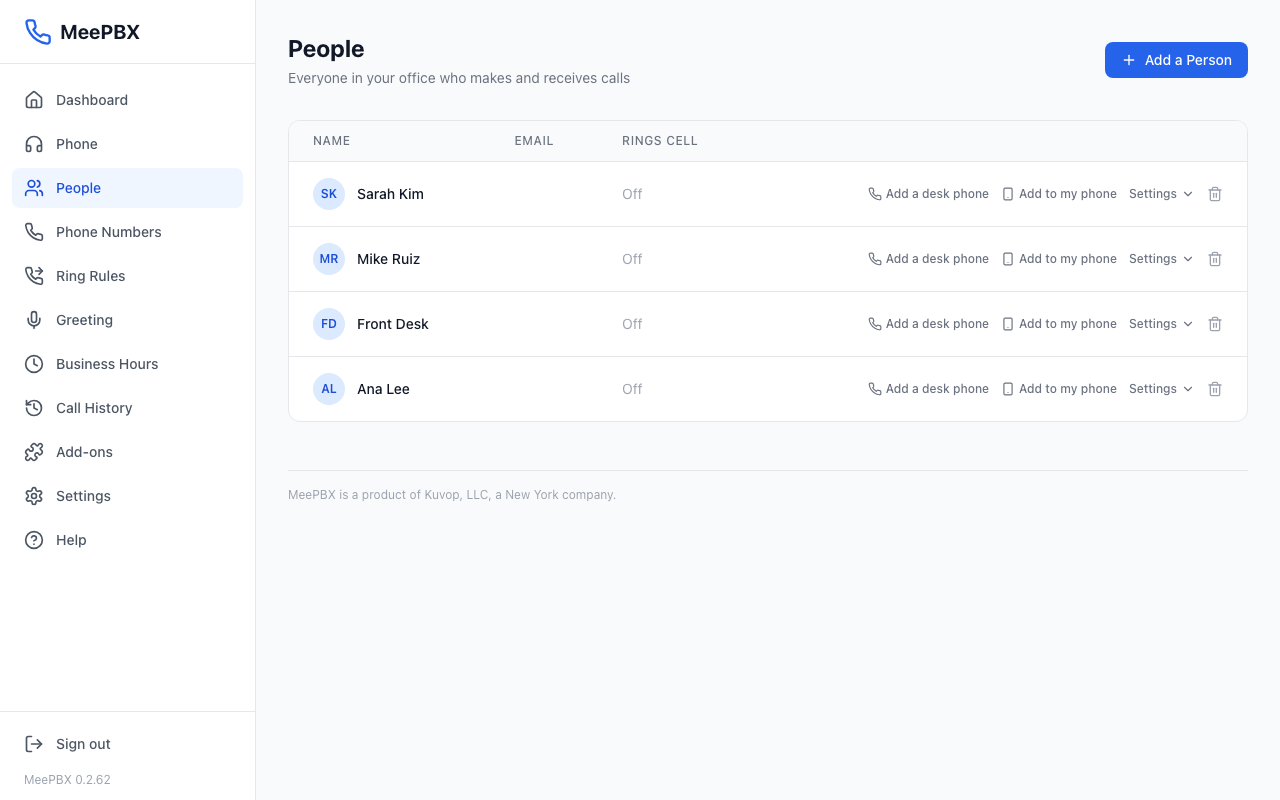
Find the person
Each row on the People page has an "Add a desk phone" link at the right end.
Add the adapter
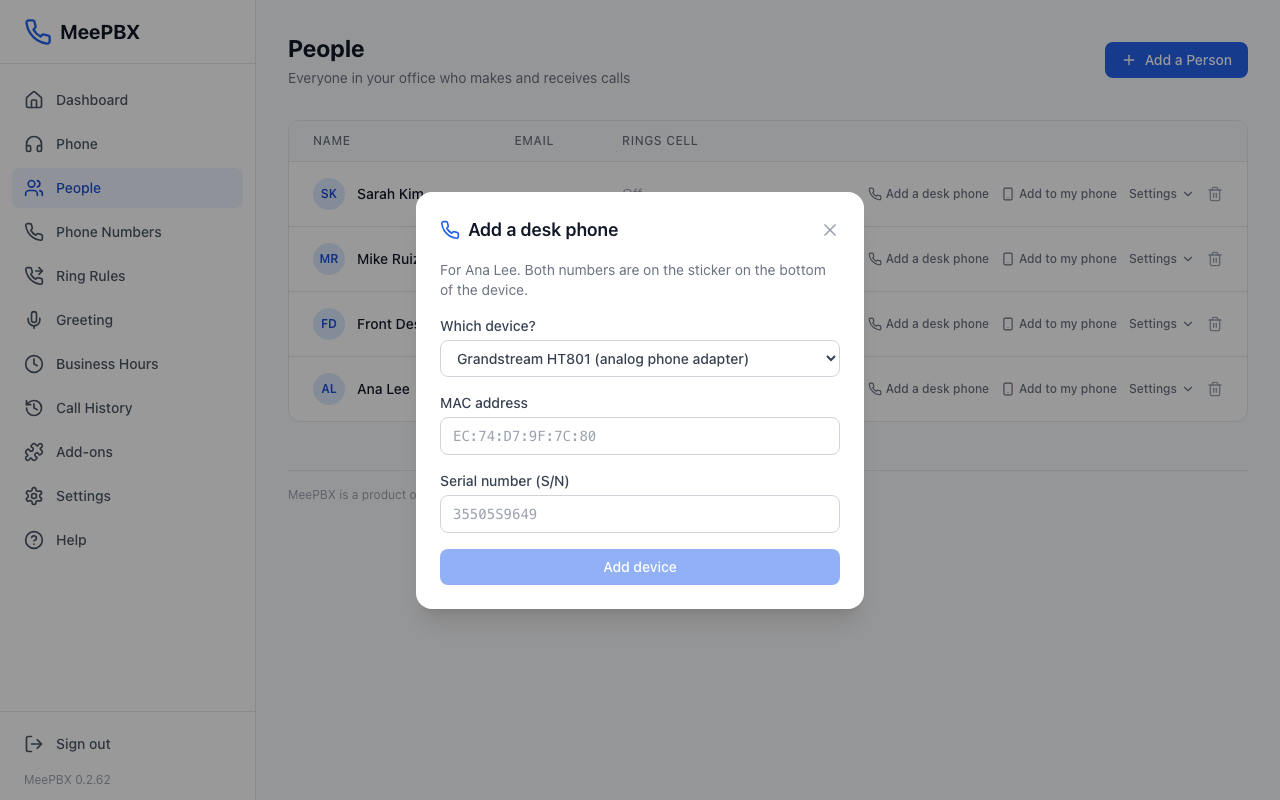
- Click "Add a desk phone" on the person's row. A box titled "Add a desk phone" opens.
- Leave "Which device?" set to the Grandstream HT801.
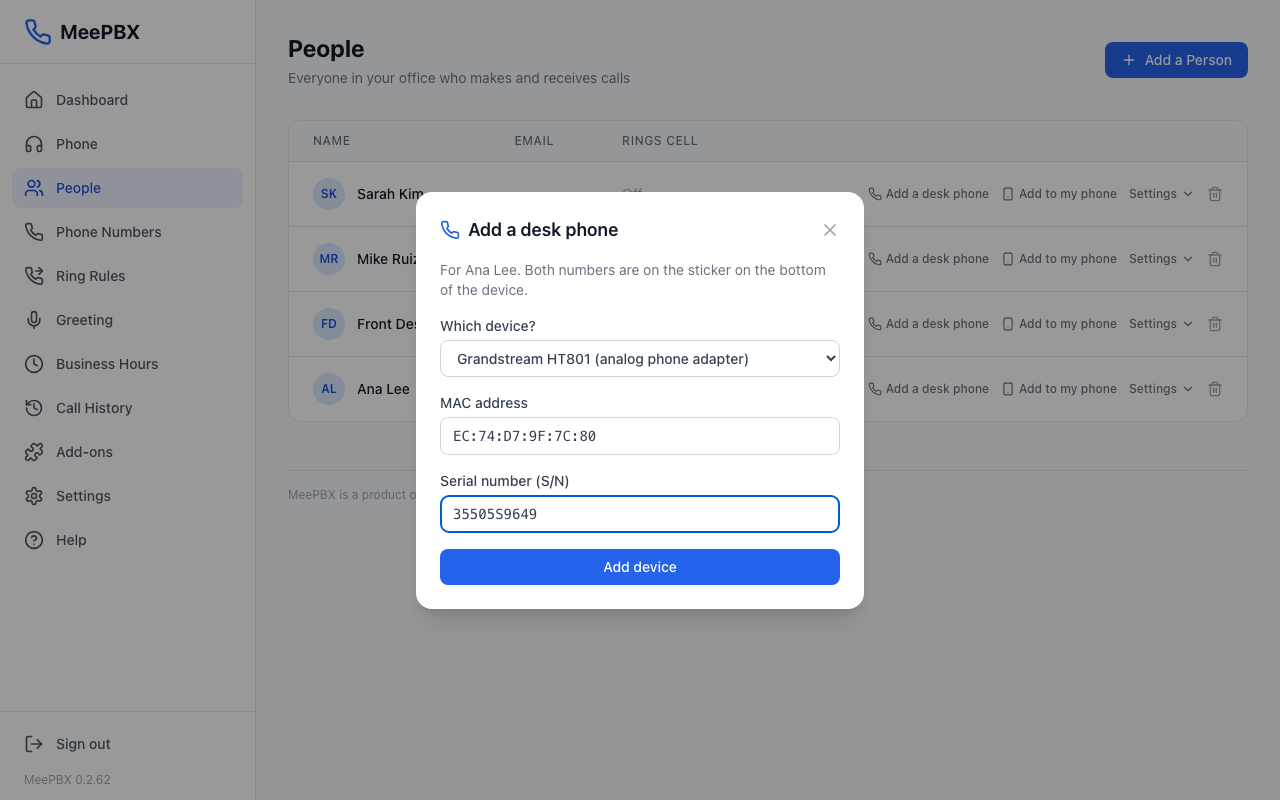
- Type the MAC from the sticker into "MAC".
- Type the number from the sticker into "Serial number (S/N)".
- Click "Add device". The button turns on only when both numbers are filled in.
Find the numbers
Turn the adapter over. The sticker on the bottom shows the MAC, 12 letters and numbers such as EC74D79F7C80. Some stickers print colons between pairs; type it with or without them. It also shows the serial number (S/N). Type both exactly as printed.
Warning: Check the serial number against the sticker before you click Add device. You cannot change it afterward.
What you see when it connects
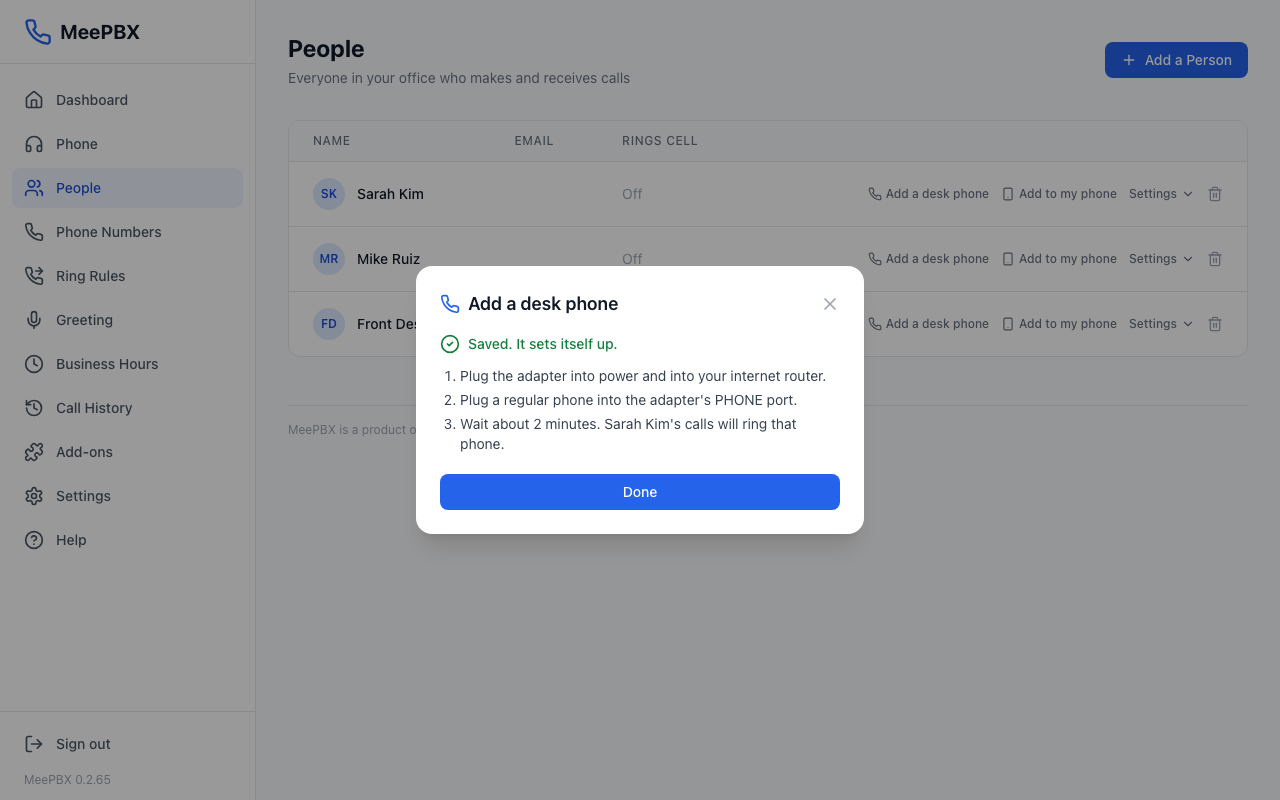
When the numbers are accepted, the box says "Saved. It sets itself up." Then follow these steps:
- Plug the adapter into power and into your internet router.
- Plug a regular phone into the adapter's PHONE port.
- Wait about 2 minutes. Calls for the person will ring that phone.
If the box says only "Saved." and shows an address, the adapter must be set up by hand. Email support@meepbx.com and tell us the MAC address and serial number from the sticker.
Click "Done" to close the box.
If the box says "Saved, but we couldn't set up the adapter automatically," check the serial number. To fix it, click "Desk phone" on the person's row, click "Remove or replace this phone", then add it again. If it still fails, email support@meepbx.com with the MAC address and serial number from the sticker. We answer on weekdays, 9 to 5 ET.
Grandstream GRP desk phones
A GRP2612, GRP2614 or GRP2616 sets itself up, like the adapter.
- Click "Add a desk phone" on the person's row and pick the phone under "Which device?".
- Type the MAC and the serial number (S/N) from the sticker on the bottom of the phone. The MAC is 12 letters and numbers, such as EC74D79F7C80. Colons are optional.
- Click "Add device". The box says "Saved. It sets itself up."
- Plug the phone into your internet router with its network cable. Wait about 5 minutes. The phone restarts once, then shows the person's name.
Tip: A phone that was used somewhere before keeps its old settings. Reset it to factory settings first. Grandstream's user guide for the phone shows how; the admin password is on the phone's sticker.
If it does not set itself up
The Desk phone box also shows an address with a "Copy" button. You can type it into the phone by hand:
- On the phone, press the round middle button, then Status, and note its IP address.
- Open that IP address in your browser and log in as admin. The password is on the phone's sticker.
- Open Maintenance, then Upgrade and Provisioning. Paste the address into Config Server Path, set Config Upgrade Via to HTTPS, and click Save and Apply. Then click Provision.
See, remove or replace a phone
Once a person has a device, their row says "Desk phone", or "Desk phones (2)" when they have more than one. Click it to see each device by name and MAC.
- Click "Show address" next to a device to see and copy its address.
- Click "Remove" next to a device. The box names the device and its MAC, then asks you to confirm. Only that device stops ringing.
- Click "Add another device" to add a new one, or the same one again.
Tip: Test a desk phone by calling 933. Never test with 911. For a real emergency, dial 911 or 9911. Read 911 and emergency alerts for details.
Related: People, Phone company and numbers, Web phone (try it).
Ready to try it? Your phone system is free for 7 days, no card needed.
Join the beta: 7 days free