Help › People
People
Use this page to add the people in your office, change who rings, and remove someone.
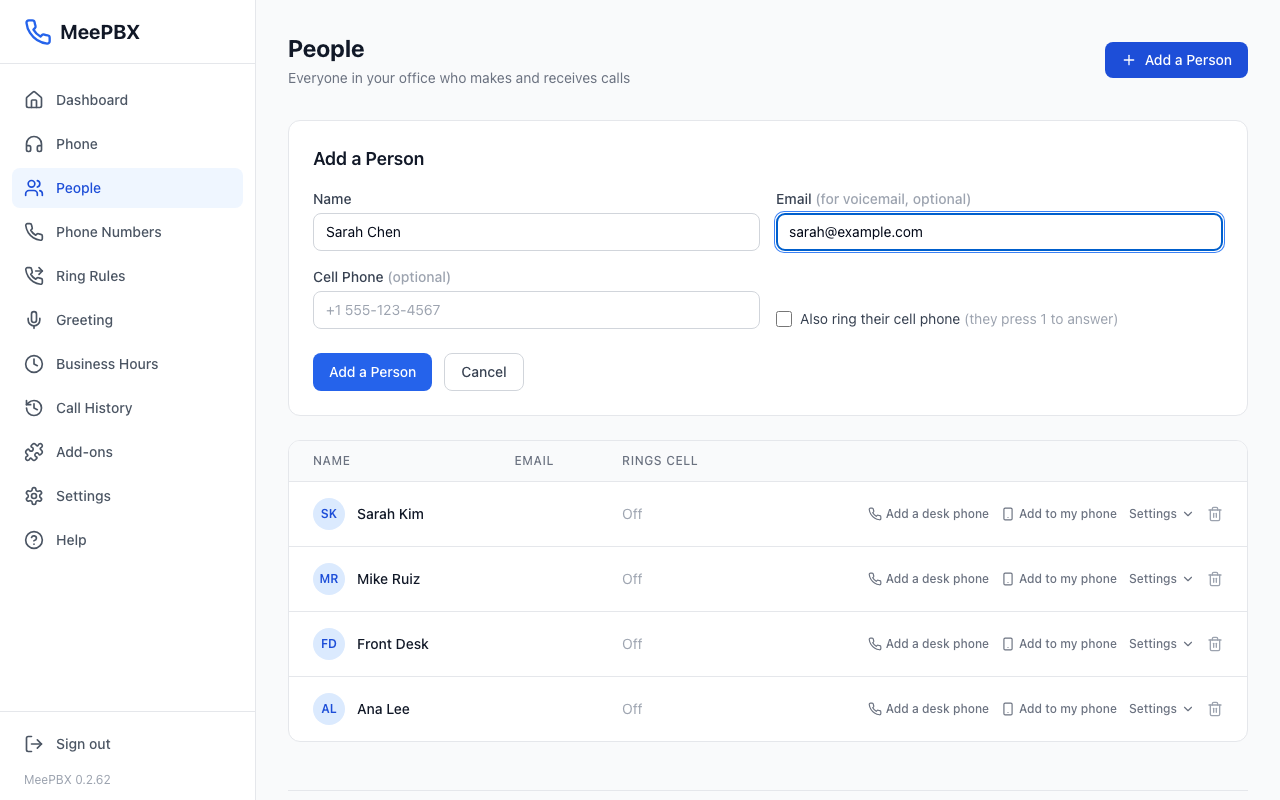
Add a person
- Click "Add a Person" at the top right of the page.
- In Name, type the person's full name, such as Sarah Chen.
- In Email (for voicemail, optional), type their email address. Their voicemail messages are emailed to this address, with the recording attached.
- In Cell Phone (optional), type their cell phone number. Leave it empty if they do not want calls on a cell phone.
- To have their cell phone ring with every call, tick "Also ring their cell phone (they press 1 to answer)."
- Click "Add a Person" at the bottom of the form. The button says "Adding..." while it saves. The new person appears in the list.
Edit a person
Each row has a "Settings" button. It opens a panel with cell phone settings and the voicemail greeting. This page does not have a way to change a name or email address.
- Click "Settings" on the person's row. A panel opens under their name.
- Under "Ring their cell phone," type their cell number in the Cell number box.
- Tick "Ring it with every call to" followed by their first name, if calls should ring their cell.
- Click "Save." The button only appears after you change something.
- Click "Settings" again to close the panel.
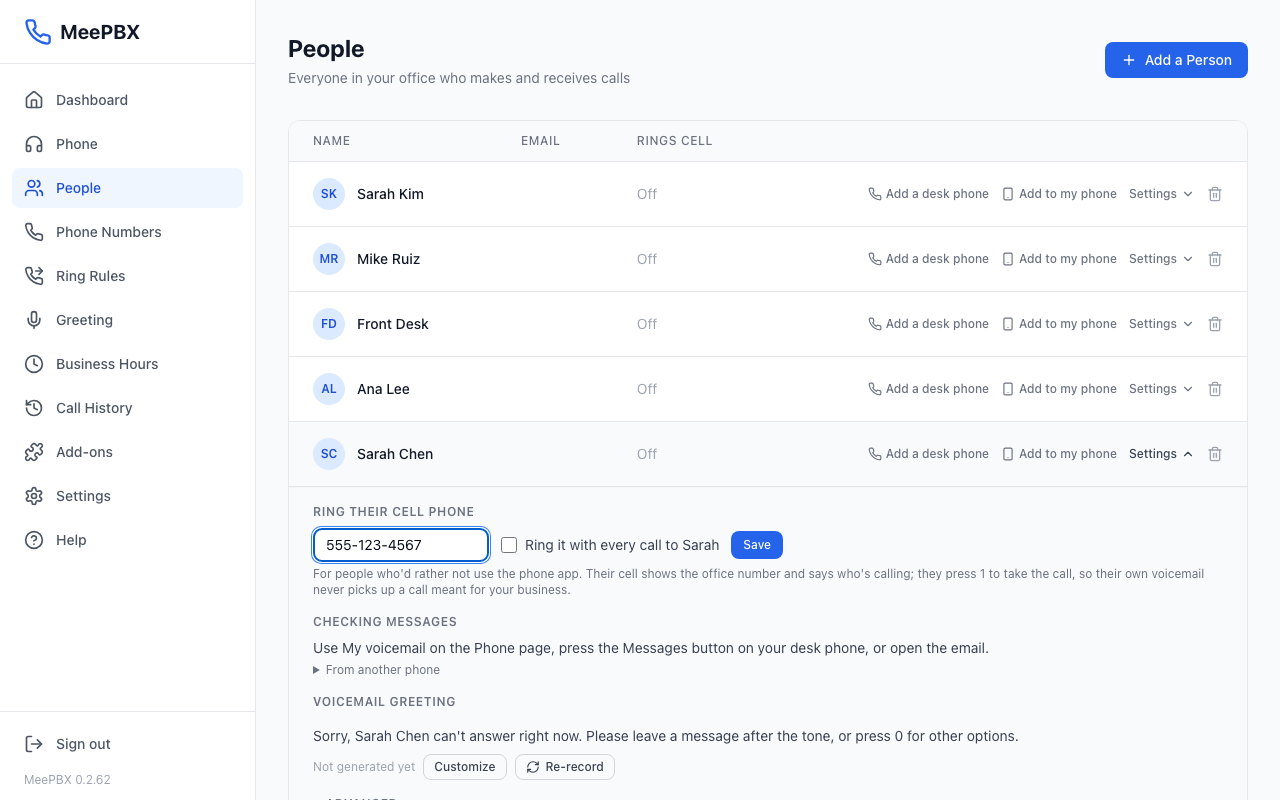
The same panel has a "Voicemail greeting" section. Click "Customize" to write the words callers hear. Click "Reset to default" to go back to the standard greeting. See Voicemail.
Remove a person
- Find the person's row in the list.
- Click the trash can icon at the right end of the row.
- A box asks "Remove" followed by the person's name. Click OK to remove them, or Cancel to keep them.
Warning: Removing a person cannot be undone. Their voicemail messages are deleted, and they are taken out of every ring rule. Their desk phone stops working.
What an extension is
Each person gets an extension. An extension is a short internal number the system gives each person. You can see it by opening "Settings" and then "Advanced." This page has no box for changing it. From any office phone, dial a person's extension to call them directly.
Cell phone forwarding
When "Ring their cell phone" is on, their cell phone rings with every call to them, along with their desk phone. Their cell shows your office number and says who is calling. They press 1 to take the call. This keeps their own voicemail from answering a call meant for your business.
Only tick this box when you also type a cell number. The "Rings cell" column in the list shows On or Off for each person.
Desk phones
The "Add a desk phone" button on each row starts the steps for a regular desk phone. See Desk phones (HT801 adapter).
Next steps
Choose which phones ring for a call on Who rings when a call comes in. If you get stuck, see Getting help.
Ready to try it? Your phone system is free for 7 days, no card needed.
Join the beta: 7 days free