Help › Getting started
Getting started
This page helps you sign in and finish the setup steps the first time you open MeePBX.
What to have ready
- Your business name and your time zone.
- The names of the people who should get calls. Their email addresses are optional.
- Your phone company account, or a phone number you want callers to use.
- The street address where the office phone is. You will need it for 911.
Plan on about 20 minutes. Most of that time is signing up with your phone company.
Sign in
Click "Sign in at app.meepbx.com" and sign in there with the Google account you signed up with. You come back to your phone system already signed in.
The setup wizard
After you sign in, the setup wizard opens by itself until setup is finished. Use the Back and Next buttons at the bottom of each step. If you close the page, the wizard opens on the same step next time. If you answered the first two questions when you signed up, those steps are skipped.
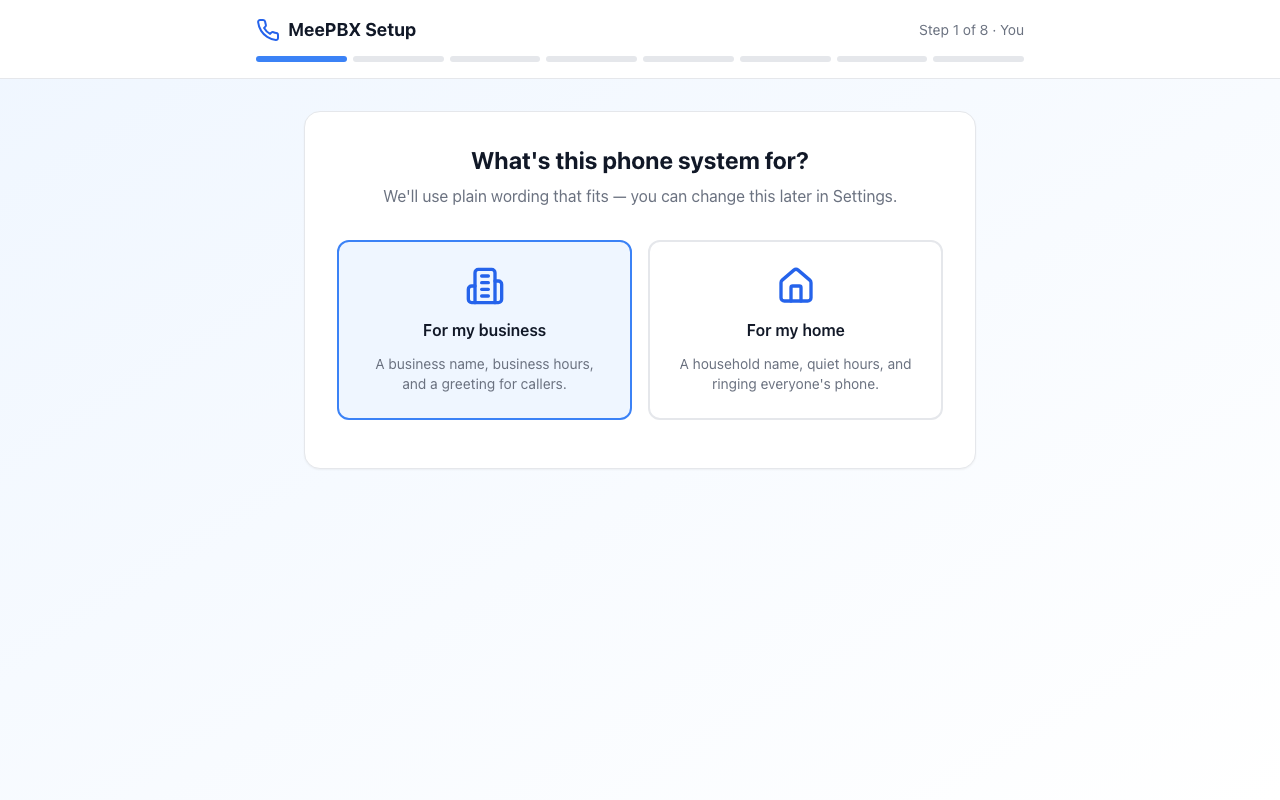
- On "What's this phone system for?" click "For my business" or "For my home". This only changes the wording. You can change it later in Settings.
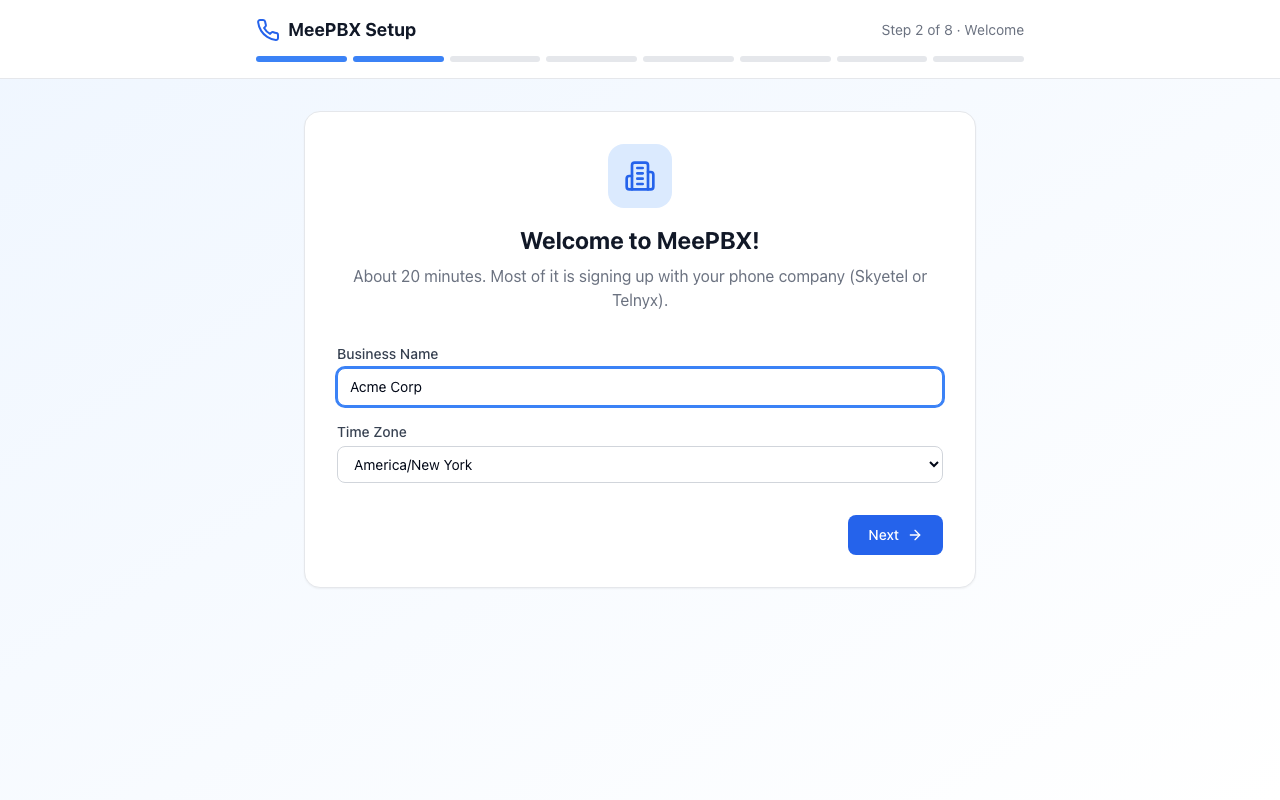
- On "Welcome to MeePBX!" type your business name in "Business Name". Check that "Time Zone" is right, then click Next.
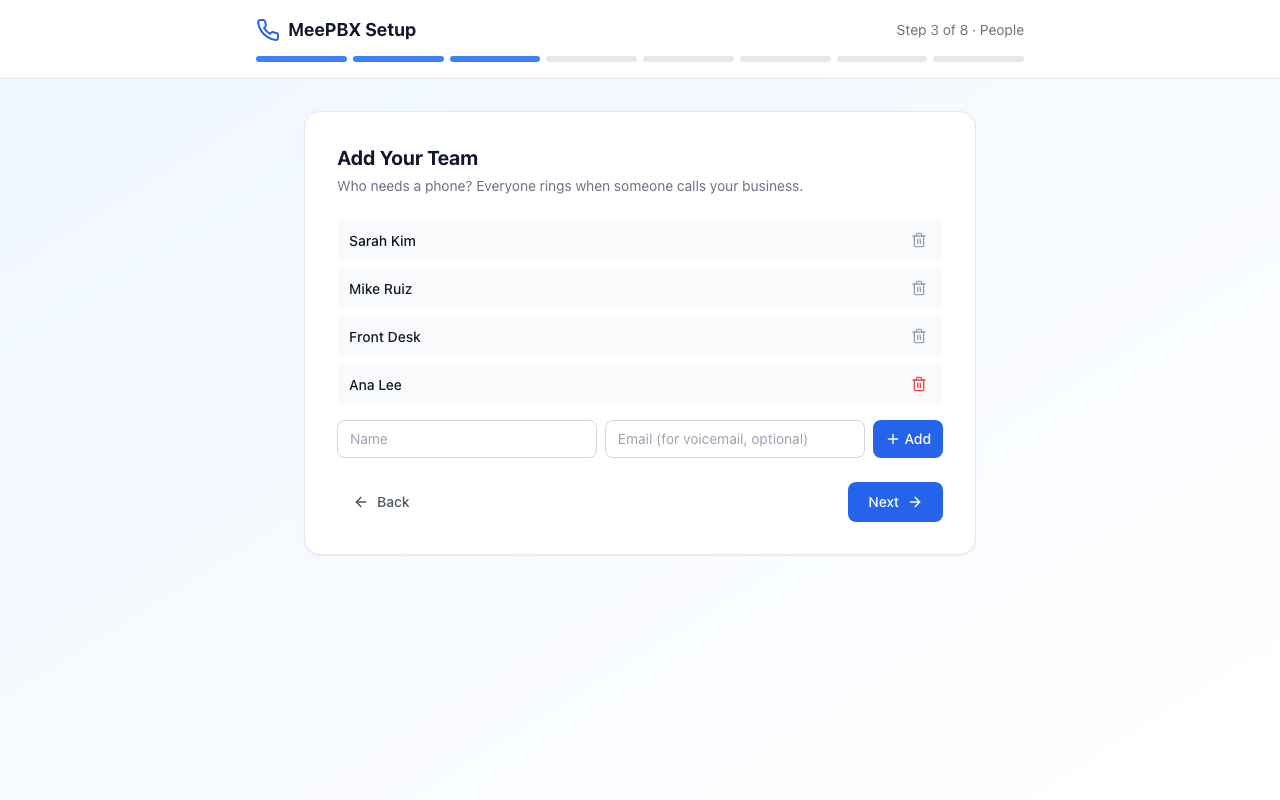
- On "Add Your Team" type a name in the box marked "Name", add an email in "Email (for voicemail, optional)" if you want one, and click Add. Add at least one person, then click Next.
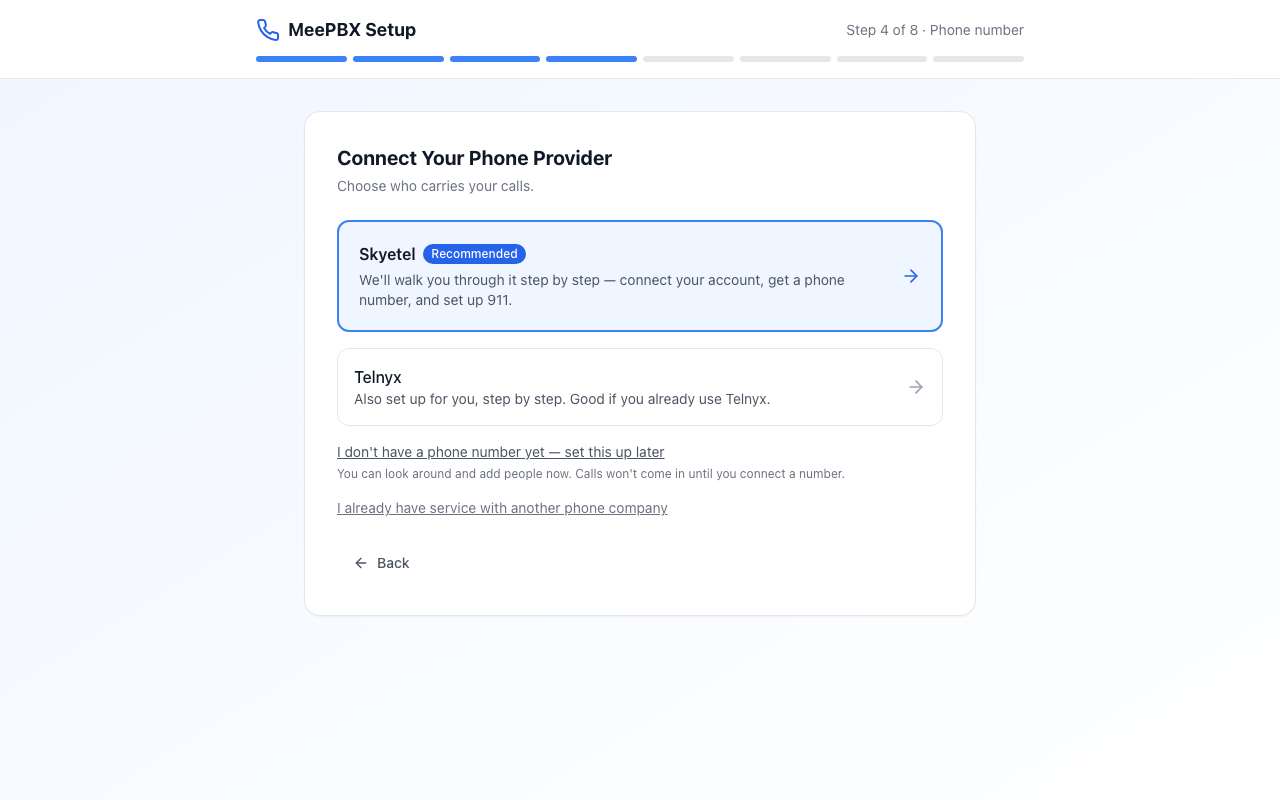
- On "Connect Your Phone Provider" click "Skyetel" or "Telnyx". Both walk you through the account setup one step at a time. If you already have service with another phone company, use the link "I already have service with another phone company" and type your username and password. If you do not have a number yet, use the link at the bottom to set it up later. Calls will not come in until a number is connected.
- On "Add Your Phone Number" type the number in "Phone Number" and click "Save & Continue". This step is skipped if the phone company step already added a number.
- On "Create Your Greeting" check the text callers will hear, then click "Save & Continue".
- The "Your phone" step is optional. Click "I'll do this later" to skip it.
- On "You're all set!" click "Go to Dashboard".
Make a test call
On the "You're all set!" screen, your main phone number is shown if one is connected. Call that number from a different phone. Your phone should ring within a few seconds. If nothing rings, email support@meepbx.com.
Warning: Do not call 911 to test. Calls to 911 are real emergency calls. To check that 911 service works, use the test line 933. Read the 911 and emergency alerts page first.
Next steps
- People to add or remove people.
- Phone company and numbers to check your number and provider.
- Getting help for support hours and contact details.
Ready to try it? Your phone system is free for 7 days, no card needed.
Join the beta: 7 days free