Help › Business hours and holidays
Business hours and holidays
Set the hours your office is open, mark holidays, and choose what callers get when you are closed.
Business hours tell the phone system when your office is open. Calls during open hours ring your people as usual. Any other time counts as after hours, and the call goes where you choose.
At home
At home, this page is called Schedule, and there is nothing to open or close. A schedule sets when phones ring. The rest of the time is quiet hours, and calls go where you choose, usually voicemail.
- The form says "When phones ring, by day". Check each day phones should ring and set the times. A day you do not check is quiet all day.
- The Phone Numbers page has a Schedule column. Under "During quiet hours, send calls to...", pick where quiet-hours calls go.
- Homes have no holidays list.
The steps below are written for an office. At home, read "open hours" as "when phones ring" and "after hours" as "quiet hours".
Set your open hours
- Open the Business Hours page. At home, this page is called Schedule.
- Click "Add a Schedule". The form starts with Monday to Friday, 09:00 to 17:00 filled in.
- The name starts as Standard Hours. Change it in Name if you like.
- Under "Open hours by day", check the box for each day you are open. A day you do not check is closed all day.
- Set the open and close times for each day you checked.
- Click "Add Schedule".
Warning: MeePBX does not check your times. Make sure each close time is later than its open time. If you check no days, every call counts as after hours.
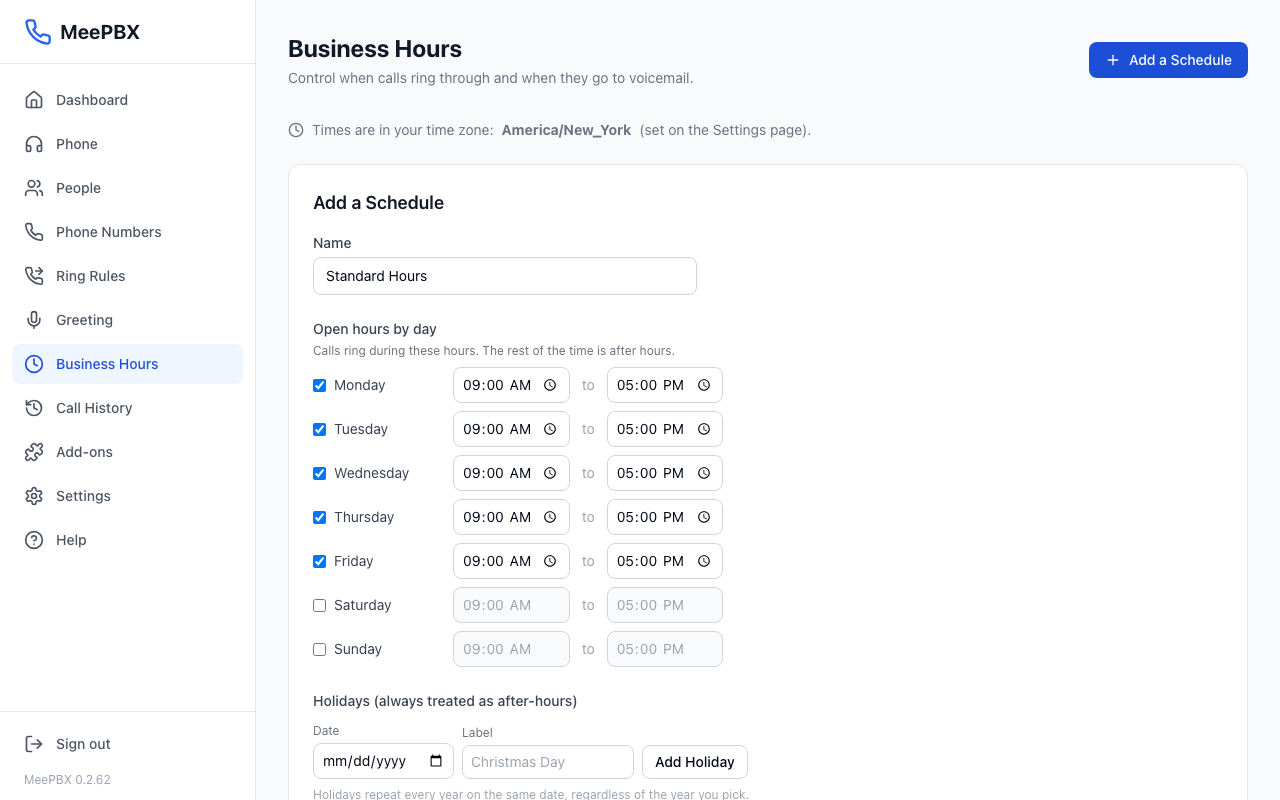
The times use the time zone shown at the top of the page. To change it, see Settings. Changes take effect as soon as you save.
Add holidays
- Click "Add a Schedule", or click "Edit" next to the schedule you want to change.
- Scroll to "Holidays (always treated as after-hours)".
- Pick the day in Date.
- Type the holiday name in Label, such as Christmas Day.
- Click "Add Holiday". Both Date and Label must be filled in, or the button does nothing.
- Click "Save Changes", or "Add Schedule" for a new schedule. The holiday is not saved until you do this.
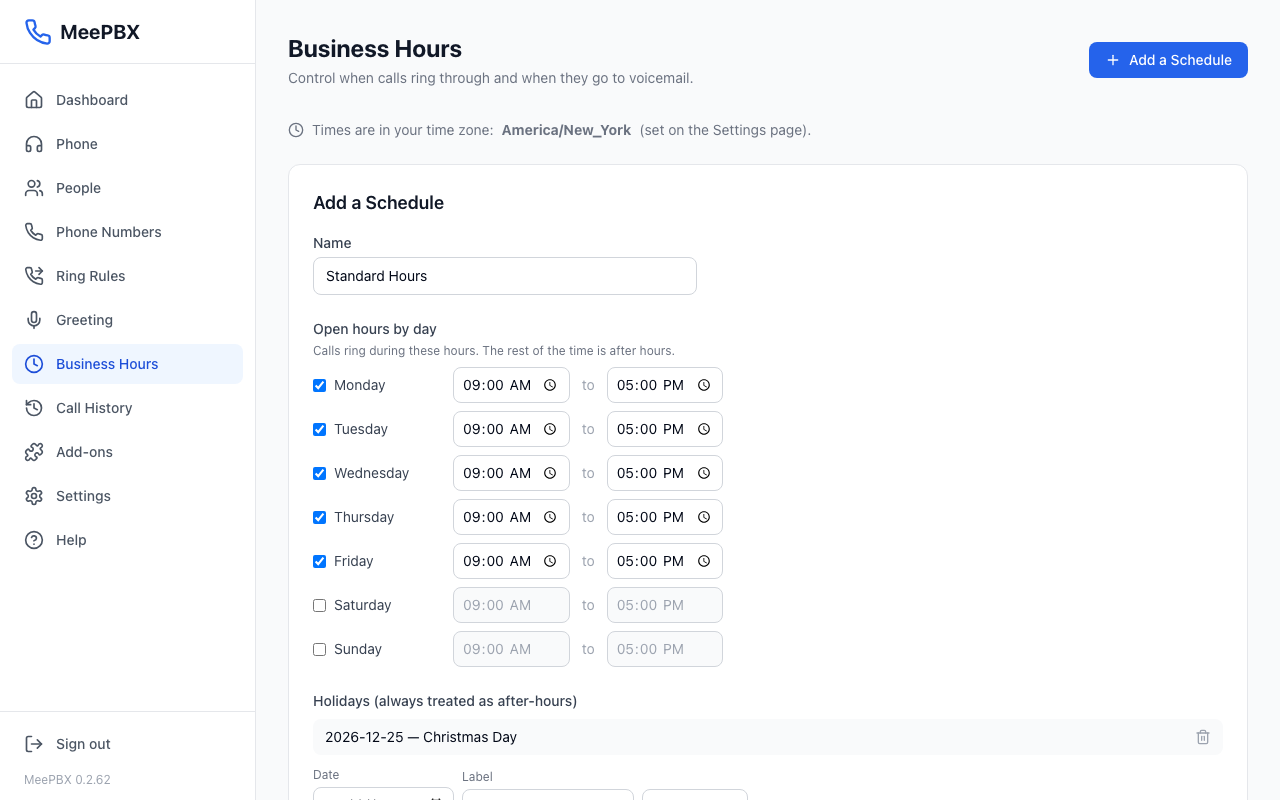
Tip: Holidays repeat every year on the same date. You only need to add each one once. To remove a holiday, click the trash icon next to it, then click "Save Changes".
Check your schedules
Each schedule shows its name, the days and times it is open, and how many holidays it has. Click "Edit" to change a schedule.
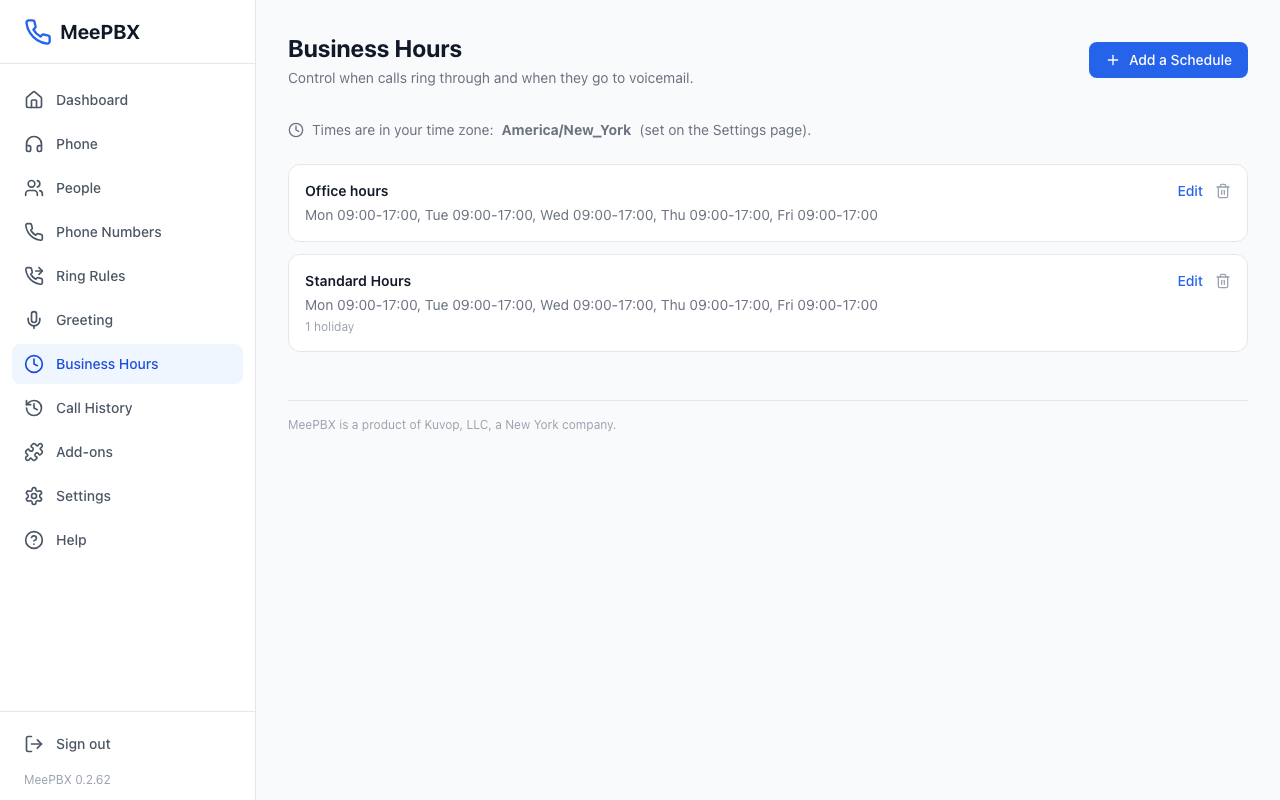
Warning: If you delete a schedule, every phone number that used it rings its normal choice at all hours, and its after-hours choice is cleared. Check the Phone Numbers page first.
Use a schedule for a phone number
A schedule does nothing until a phone number uses it.
- Open the Phone Numbers page.
- In the Business Hours column for the number, click "Edit".
- Under "Business Hours", pick a schedule. Pick the option that starts with "Always ring" to ignore hours for this number.
- Under "After hours, ring...", pick where after-hours calls go: Voicemail, A person, A ring rule, or A greeting menu. Then pick the specific one under "Which one?".
- Click "Save".
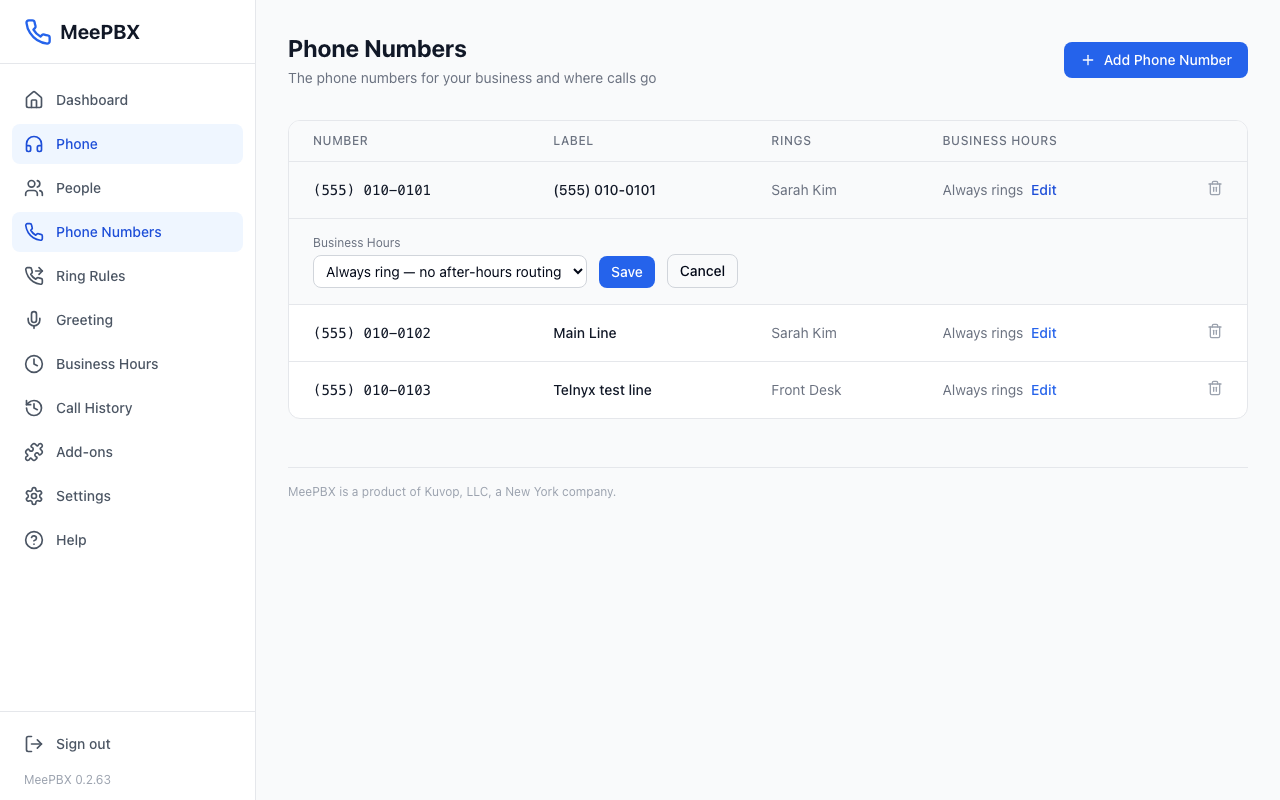
What callers get after hours
After hours, the call goes to the one place you picked on the phone number. Voicemail takes a message in the mailbox of the person you pick under "Which one?". A person or a ring rule rings those people. A greeting menu plays your menu, which you set up on the Greeting page.
Read more about ring rules and phone numbers. If you need help, see getting help.
Ready to try it? Your phone system is free for 7 days, no card needed.
Join the beta: 7 days free